





















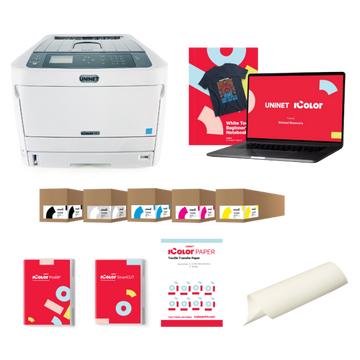





























Machine type
 Prestige XL series (L2, XL2, XL2 Pro, XL3, XL4)
 DTF Station Prestige R2 Pro
 DTF Station Prestige R1
 DTF Station Prestige R2 (original)
 Prestige X6
 DTF Station Prestige A4
 DTF Station Prestige A3+ and A3+ R
 Epson SureColor G6070 DTF printer
 Mimaki TxF300-1600
 Mimaki TxF330-800
 STS XPD-924D DTF Printer (Mutoh)
 STS VJ-628D DTF Printer (Mutoh)
 DTF Station Vega S17
 STS XpertJet 1682D (XPJ-1682D) 64 inch DTF Printer
 STS XPD-724 DTF Printer (Mutoh)


 Hotronix Fusion IQ, Air Fusion IQ and Dual Air Fusion IQ
 Geo Knight DK20S and DK20SP Digital Knight Swing-Away Presses
 DTF Station Maxima and Proxima Dual Heat Presses
 Hotronix Auto Open Clam and Hover Heat Press
 DTF Station Prisma Auto Heat Press
 DTF Station Prisma Dual Heat Press
 DTF Station Prisma Swing Heat Press
 Insta 718, 728 and 828 Automatic Swing-Away Heat Presses
 DTF Station Prisma Sentry Heat Press
 Geo Knight DC16 and DC16AP Digital Combo Swing-Away Presses
 Geo Knight DK Digital Clamshell Presses: DK20, DK16, DKA Auto, DK8 Label and DK7 Cap
 Hotronix Auto Open Cap Press and 360 IQ Hat Press
 Hotronix Craft Heat Press 9 x 12
 Hotronix Mighty Mug Heat Press
 Insta 256 and 288 Manual Swing-Away Heat Presses
 Insta 907 Dual Station Shuttle Label Heat Press


 Viper MAXX pretreatment machine
 Ecofreen Mister-T2 and Mister-T2 Pro pretreatment machines
 Pearl Elite and Pearl PTM DTG pretreatment machines
 Viper XPT-1000 pretreatment machine
 Lawson Silver-Jet and Silver-Jet V2 DTG Pretreat Sprayers
 Lawson Zoom-AE DTG pretreatment machine
 Viper MINI handheld DTG pretreatment machine


Brand
Prestige XL series (L2, XL2, XL2 Pro, XL3, XL4)
DTF Station Prestige R2 Pro
DTF Station Prestige R1
DTF Station Prestige R2 (original)
Prestige X6
DTF Station Prestige A4
DTF Station Prestige A3+ and A3+ R
 DTF Station Aries 124 UV DTF printer
 Miro DTF Powder Shakers: Miro 13 Max, 16, 24 and 36
 DTF Station Aries 213 and Aries 113 UV DTF printers
 Seismo L16R and L24R DTF Powder Shaker and Dryer
 Phoenix Air 16x20 DTF Curing Oven
DTF Station Maxima and Proxima Dual Heat Presses
DTF Station Prisma Auto Heat Press
DTF Station Prisma Dual Heat Press
DTF Station Prisma Swing Heat Press
DTF Station Vega S17
DTF Station Prisma Sentry Heat Press
 DTF Station Seismo V36R DTF Powder Shaker and Dryer
 DTF Station Arc 127 automatic cutter for DTF and UV DTF film
 Epson SureColor F2100
Epson SureColor G6070 DTF printer
 Epson SureColor F2270
 Epson SureColor F3070
 Epson SureColor F570
 Epson SureColor F170
 Epson SureColor F6470 and F6470H
 Epson SureColor F6370
 Epson SureColor F7200
 Epson SureColor P-Series photo printers (P700, P900, P6570, P8570)
 Epson SureColor T-Series CAD and technical printers
 Epson SureColor S-Series (S40600, S60600, S80600)
Epson F170 paper jams and paper not feeding: how to clear them and stop them coming back
To clear an F170 jam, follow the animation on the screen: remove the rear cover and pull out the paper, then open the printer cover and remove any pieces inside, without tilting the printer. Most jams and crooked feeds come from the edge guides not touching the paper. If sheets won't pick up, clean the cassette roller with a damp cloth as Epson describes.
Match your symptom
| What you see | Most likely cause | Go to |
|---|---|---|
| Paper jam message, or a sheet stuck inside | Paper loaded crooked, edge guides loose, or a torn piece left behind | Clearing a jam |
| Paper won't pick up from the cassette | Dirty pickup roller, overfilled cassette, or wavy paper | Paper won't feed |
| Paper goes in at a slant | Edge guides not against the paper | Loading paper the right way |
| A blank sheet comes out with the print | Two sheets fed at once | Paper won't feed |
| Ink marks or roller traces on the paper | Ink on the rollers, or non-genuine paper | Cleaning the paper path |
Clearing a jam
The F170's screen plays an animation showing where the paper is stuck. Follow it, and keep these rules: pull paper out slowly (forcing it can damage the printer), never press control panel buttons with your hand inside, and never tilt the printer, stand it up or turn it over while clearing a jam, or ink can leak from the tanks.
-
Check the back
Remove the rear cover, pull out any jammed paper, and check the cover itself for paper stuck in it. Put the rear cover back.
-
Check inside
Open the printer cover with both hands until it locks, and remove any paper or torn pieces. Don't touch the white flat cable, the clear translucent film or the ink tubes inside.
-
Close up and reload
Close the printer cover. It closes slowly and resists a little by design, so keep pushing gently. Then reload the paper as below before you print again.
Loading paper the right way
-
Open the front and pull out the cassette
Open the front cover until it clicks, make sure the printer isn't working, and slide the paper cassette out. It doesn't come all the way out.
-
Open the guides and load face down
Slide the edge guides all the way out. Load the paper printable side down until it touches the back of the cassette. For legal size, pull out the paper guide extension; for 8.5 x 13 inch, load to the line.
-
Close the guides and slide it in
Slide the edge guides against the edges of the stack, insert the cassette gently, and slide out the output tray.
Don't load more than the maximum for your paper. Epson lists 150 sheets for its DS Transfer Multi Use paper in letter and legal. Make sure the paper size and type in your print settings match what's in the cassette.
Paper won't feed
- Put the printer on a flat surface. Epson rates it for 50 to 95°F and 20 to 80% humidity.
- Use transfer paper the F170 supports, and don't use sheets that have gone wavy or slack. Epson recommends loading paper just before printing and storing the rest flat in its original package, at 59 to 77°F and 40 to 60% humidity.
- Fan in a fresh stack below the maximum, with the guides snug.
- If it still won't pick up, clean the roller (below).
Cleaning the paper path
-
For ink marks on the paper
Load letter or A4 plain paper, choose Maintenance > Paper Guide Cleaning on the home screen and follow the prompts. Repeat until the paper comes out clean.
-
For paper that won't pick up
Turn the printer off and unplug the power cord. Make sure every ink tank cap is closed tight, or ink can leak. Close the printer cover, slide out the cassette and take the paper out. Stand the printer on its side with the ink tank at the bottom, but not for long. Wipe the roller with a soft cloth dampened in water and wrung out well, turning the roller as you go. Set the printer back down, insert the cassette and plug it back in.
Never use tissue to clean inside the printer. Epson warns the lint can clog the print head nozzles.
Still jamming? Text a short video of it feeding to (562) 609-4996.
Common questions
Which way up does sublimation paper go in the F170?
Printable side facing down in the paper cassette, pushed until it touches the back.
How many sheets can I load?
Epson lists 150 sheets of its DS Transfer Multi Use paper in letter and legal. Don't go over the maximum for the paper you use.
Why did a blank sheet come out?
Epson says it can happen when two sheets feed at once. Reload a fresh, flat stack with the guides snug.
Can I tip the printer over to get paper out?
No. Epson says tilting it, standing it up or turning it over while clearing a jam can leak ink. The only time you stand it on its side is for roller cleaning, with the ink tank caps closed and the ink tank at the bottom.
Does the paper brand matter?
Epson says paper other than genuine Epson transfer paper can give roller traces, poor color or ink rub-off.
- Epson SC-F100 Series (SureColor F170) User's Guide (PDF)
- Epson SureColor F170 Start Here installation guide
- Epson SureColor F170 support page
- AA support requests about F170 printing problems, 2024 to 2026