





















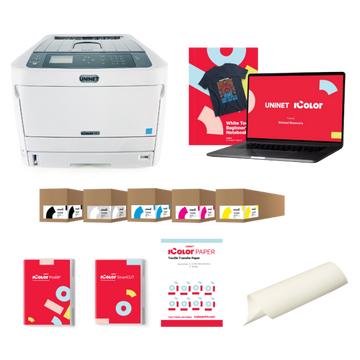





























Machine type
 Prestige XL series (L2, XL2, XL2 Pro, XL3, XL4)
 DTF Station Prestige R2 Pro
 DTF Station Prestige R1
 DTF Station Prestige R2 (original)
 Prestige X6
 DTF Station Prestige A4
 DTF Station Prestige A3+ and A3+ R
 Epson SureColor G6070 DTF printer
 Mimaki TxF300-1600
 Mimaki TxF330-800
 STS XPD-924D DTF Printer (Mutoh)
 STS VJ-628D DTF Printer (Mutoh)
 DTF Station Vega S17
 STS XpertJet 1682D (XPJ-1682D) 64 inch DTF Printer
 STS XPD-724 DTF Printer (Mutoh)


 Hotronix Fusion IQ, Air Fusion IQ and Dual Air Fusion IQ
 Geo Knight DK20S and DK20SP Digital Knight Swing-Away Presses
 DTF Station Maxima and Proxima Dual Heat Presses
 Hotronix Auto Open Clam and Hover Heat Press
 DTF Station Prisma Auto Heat Press
 DTF Station Prisma Dual Heat Press
 DTF Station Prisma Swing Heat Press
 Insta 718, 728 and 828 Automatic Swing-Away Heat Presses
 DTF Station Prisma Sentry Heat Press
 Geo Knight DC16 and DC16AP Digital Combo Swing-Away Presses
 Geo Knight DK Digital Clamshell Presses: DK20, DK16, DKA Auto, DK8 Label and DK7 Cap
 Hotronix Auto Open Cap Press and 360 IQ Hat Press
 Hotronix Craft Heat Press 9 x 12
 Hotronix Mighty Mug Heat Press
 Insta 256 and 288 Manual Swing-Away Heat Presses
 Insta 907 Dual Station Shuttle Label Heat Press


 Viper MAXX pretreatment machine
 Ecofreen Mister-T2 and Mister-T2 Pro pretreatment machines
 Pearl Elite and Pearl PTM DTG pretreatment machines
 Viper XPT-1000 pretreatment machine
 Lawson Silver-Jet and Silver-Jet V2 DTG Pretreat Sprayers
 Lawson Zoom-AE DTG pretreatment machine
 Viper MINI handheld DTG pretreatment machine


Brand
Prestige XL series (L2, XL2, XL2 Pro, XL3, XL4)
DTF Station Prestige R2 Pro
DTF Station Prestige R1
DTF Station Prestige R2 (original)
Prestige X6
DTF Station Prestige A4
DTF Station Prestige A3+ and A3+ R
 DTF Station Aries 124 UV DTF printer
 Miro DTF Powder Shakers: Miro 13 Max, 16, 24 and 36
 DTF Station Aries 213 and Aries 113 UV DTF printers
 Seismo L16R and L24R DTF Powder Shaker and Dryer
 Phoenix Air 16x20 DTF Curing Oven
DTF Station Maxima and Proxima Dual Heat Presses
DTF Station Prisma Auto Heat Press
DTF Station Prisma Dual Heat Press
DTF Station Prisma Swing Heat Press
DTF Station Vega S17
DTF Station Prisma Sentry Heat Press
 DTF Station Seismo V36R DTF Powder Shaker and Dryer
 DTF Station Arc 127 automatic cutter for DTF and UV DTF film
 Epson SureColor F2100
Epson SureColor G6070 DTF printer
 Epson SureColor F2270
 Epson SureColor F3070
 Epson SureColor F570
 Epson SureColor F170
 Epson SureColor F6470 and F6470H
 Epson SureColor F6370
 Epson SureColor F7200
 Epson SureColor P-Series photo printers (P700, P900, P6570, P8570)
 Epson SureColor T-Series CAD and technical printers
 Epson SureColor S-Series (S40600, S60600, S80600)
STS printer S/C card error, cartridge not recognized, or full cartridge showing empty (XPD-724, XPJ-1682D, XPD-924D)
Every STS ink and cleaning cartridge or bag comes with an S/C card (smart chip) that tells the printer the color, capacity and ink level. Most S/C errors come from a card in the wrong slot, a card not fully seated, or an old card reused with new ink. Check the card matches the slot label, reseat it with the printer powered on, and always fit the new card that came with the new ink. If the printer asks you to confirm the color, smartchip recovery lets you keep printing.
Match your message
On the XPJ-1682D and XPD-924D the message shows on the front panel, with the slot number in brackets. On the XPD-724, open MSM and check S/C Card Information under Printer Status: the Format check column shows the reading for each slot, and hovering over the reading label shows details.
| Message | What it means | What to do |
|---|---|---|
| Read Err, S/C ReadErr | The printer could not read the card | Steps 1 and 2 |
| Col. Err, S/C Col.Err | The card is for a different color than that slot | Step 1: put each card and cartridge in its labeled slot |
| Ink Err, Code Err | The card or ink isn't supported by this printer | Check it's the right STS ink for your model. If it is, contact us |
| Broken Chip | The card is damaged and can't be used | Step 3, or fit a new card |
| Size Err | Cartridge size not supported | Check you have the right cartridge for your model |
| No S/C Card | No card detected in that slot | Step 2 |
| S/C Recog. E, or Check Color OK -> Enter | Card needs smartchip recovery | Step 3 |
| Ink End, S/C Ink End, Chg. S/C Card | Ink has run out by the card's count | Fit new ink with its new card |
Step by step
-
Check the card matches the slot
Each slot is labeled with its color, and cleaning cartridges are made for specific slots. Make sure the card, the ink and the slot label all agree. Put adapters and cartridges back in their original slots, even if another slot holds the same color.
-
Reseat the card with the printer on
Leave the printer powered on. Remove the cartridge or ink pack adapter, take the S/C card off, check it isn't bent or dirty, and refit it the same way (on ink pack adapters it slides into the tabs). Reinsert the cartridge or adapter all the way, arrow up on cartridges. Wait for the printer to finish reading. If it still can't read it, insert a new S/C card.
-
Use smartchip recovery if the printer offers it
If the panel shows Check Color OK -> Enter, first make sure the ink color in that slot really is correct. If it is, tap Enter. The printer runs smartchip recovery and keeps printing. While it's in recovery the slot blinks in the ink status, the level is fixed at 10%, and you have to check the real ink level by eye. When that ink runs out, you'll see Chg. S/C Card: fit new ink and its new card.
-
Always fit the new card with new ink
When you change ink, swap in the S/C card that came with it. A reused card makes a full cartridge read empty, or stops the printer early.
If you are out of replacement ink, don't take the empty bag or cartridge out of the printer. Mutoh warns this can cause nozzle clogs.
Leaking or cracked cartridges
A cartridge that leaks or cracks in the slot is a product problem, not a setting. Take it out with gloves, wipe the slot area, and text us a photo of the cartridge, its label and the lot number. Don't keep printing with ink pooling around the slot.
Still getting the error with a fresh card in the right slot? Text us a photo of the message or the MSM S/C Card Information screen at (562) 609-4996.
Common questions
I put in a brand new full cartridge and it still reads empty.
Make sure you inserted the new S/C card that came with that cartridge, not the old one. Mutoh's manuals say the ink level can't be detected correctly otherwise. Also swap cartridges only with the printer on: the XPD-724 manual says a cartridge changed with the power off won't be read correctly.
Why does my cleaning cartridge show a color error?
Cleaning cartridges are slot specific, for example separate slot 7 and slot 8 cleaning cartridges on the XPD-724. A card in the wrong slot shows a color error. Check the slot number on the label.
The ink level is stuck at 10% and the slot is highlighted. Is that a problem?
That means smartchip recovery is running on that slot. You can keep printing, but the printer can no longer read the real ink level, so check the cartridge or bag by eye. When it runs out you'll be asked to change the S/C card.
Can I move a card or cartridge to a different slot of the same color?
No. Mutoh's manuals say to put each adapter or cartridge back in its original slot, even when two slots hold the same color.
Will a third-party chip or ink work?
The printers read genuine STS cards only. Messages like Ink Err and Code Err mean the printer doesn't accept that ink or card. The XPD-724 works only with XPD ink and the XPD-924D only with XPD2 ink.
- Mutoh Status Monitor (MSM) Operation Manual
- STS XPJ-1682D Operation Manual
- STS XPD-924D Operation Manual (v5)
- STS XPD-724 Operations Manual
- STS/Mutoh XPD-724 Printer Guidelines (STS Inks best practices)
- AA support requests about S/C card errors and cartridges not recognized, 2024 to 2026